
Free D&D soundboard for DMs
Add YouTube links or audio files, then play them on hotkeys at the table.
Try the soundboard
Sample sounds. Nothing is saved.
Harbor/shore ambience
Combat/battle music
Rock/stone explosion sound effect
Press a sound or use a hotkey to play it.
Press 1, 2, or 3. SHIFT+P pauses, SHIFT+S stops.
- Free
- No account needed
- Saved in your browser
What the soundboard does at the table
On your keyboard
- Hotkeys
- Each sound gets a key, such as 1, W, or Shift+7. Press it on any tool in your campaign to play the sound from the start.
- Pause and stop
- Shift+P pauses the current sound and resumes it from the same spot. Shift+S stops all sound.
- Volume
- One volume slider sets the level for the campaign. Shift+Up and Shift+Down change it in steps of 5%.
On your board
- Ambient, music, and sfx
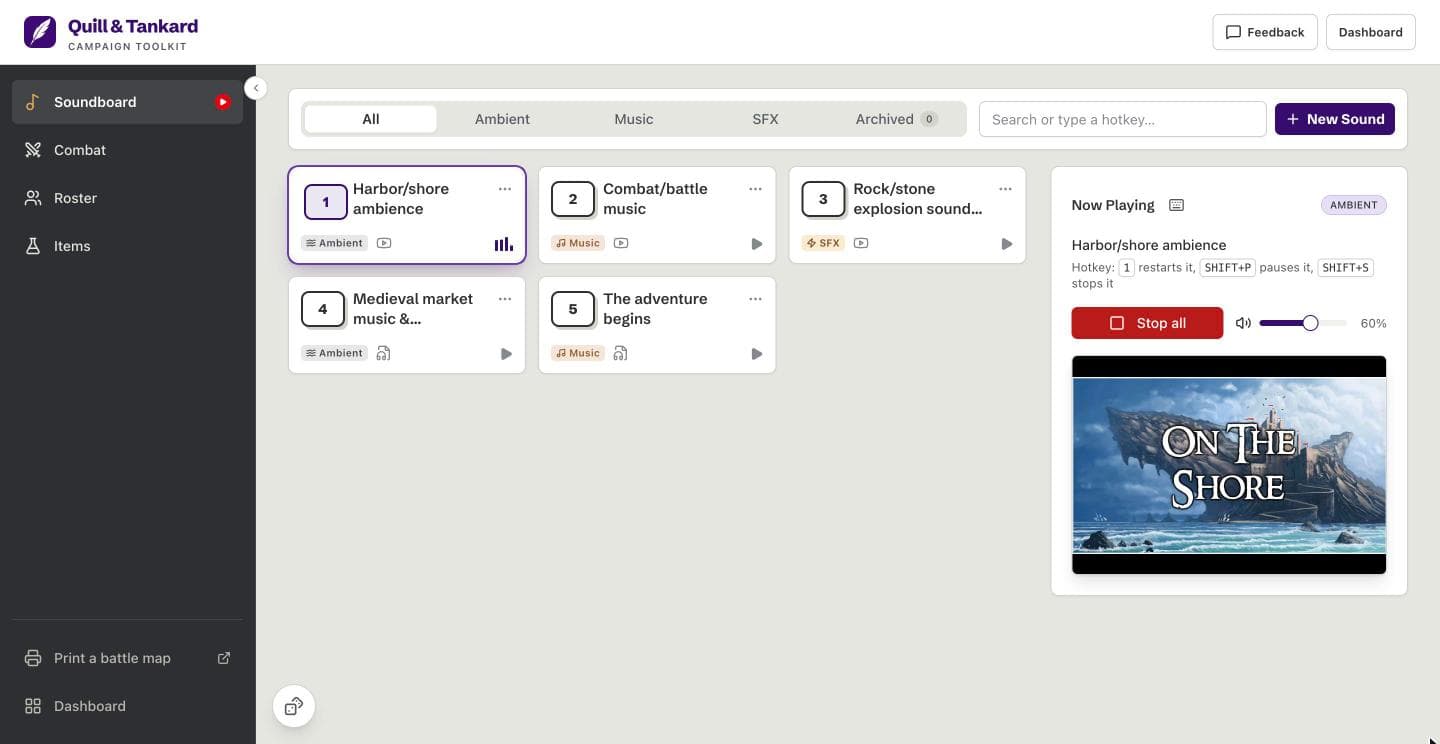
- Give each sound a category. Tabs show only ambient, music, or sfx, and each tile shows its category.
- Search by name or key
- Type part of a name, or type a key to find the sound on it. The board lists sounds in keyboard order.
- Archived sounds
- Archive a sound you do not need this session. It frees its key, and you can still play it from the Archived tab.
What you can play
- YouTube links
- Paste a YouTube link to make a sound.
- Audio files
- Or link a public HTTPS audio file, such as an MP3 or OGG. The app plays it from its own address and never copies it.
Set up your soundboard in three steps
Open a campaign
Press “Open the soundboard”. The app opens your current campaign, or makes your first one, with no account.
Add your sounds
Press “New Sound”, paste a YouTube link or an audio file URL, pick a category, and keep the suggested key or type your own. The app has no audio library, so you add every sound. To try the board first, press “Add sample sounds” on the empty board.
Play them at the table
Press a sound’s key to play it from the start. Shift+P pauses it, and Shift+S stops it.
Questions
Does it include sounds?
No, you add YouTube links or audio files yourself, because the app has no audio library. The demo on this page plays three sample sounds from YouTube. On an empty board in your campaign, “Add sample sounds” adds five sample sounds, and you can edit or delete them.
Why is the video player visible?
YouTube’s terms do not allow a hidden player, so the YouTube player stays on screen while a sound plays. On the soundboard, the player sits in the Now Playing panel. On another tool, it sits in a corner of the screen. An audio file shows an audio control bar instead of a video.
Do I need an account to add sounds?
No, you open the soundboard and add sounds with no account and no sign-up.
Where are my sounds saved?
Your sounds are saved in your browser, on your device. The app saves each sound’s name, link, category, and key, not the audio. A sound plays from YouTube or from the file’s own address, so playback needs a connection. Clearing your browser data deletes your sounds, so export a backup of your campaign from the dashboard.
Is the soundboard free?
Yes, the soundboard is free. So are the roster, item tracker, combat tracker, dice roller, and map print. There is no trial and no account.
Does it work on a phone?
Yes, you tap a sound to play it, and the board fits a phone screen. Hotkeys need a keyboard, so use them on a laptop, or on a tablet with a keyboard.